How to run code from articles
Each individual article with code corresponds to a specific GitHub repository.
In the repositories, you can find:
-
Files for operation – necessary data for import or export
-
Modules in .py format
-
.ipynb file
.py
In all the repositories, there is a requirements.txt file specifying the required libraries.
Install Python. Download the repository and place it in the desired directory.
While in the correct directory, activate the virtual environment through the terminal:
python3 -m venv venv

source venv/bin/activate

pip install -r requirements.txt
To work with the code, use text editors like Sublime. While in the correct directory, run the code through the terminal using the command python3 file_name.py.
Alternatively, you can use an Integrated Development Environment (IDE) such as PyCharm.
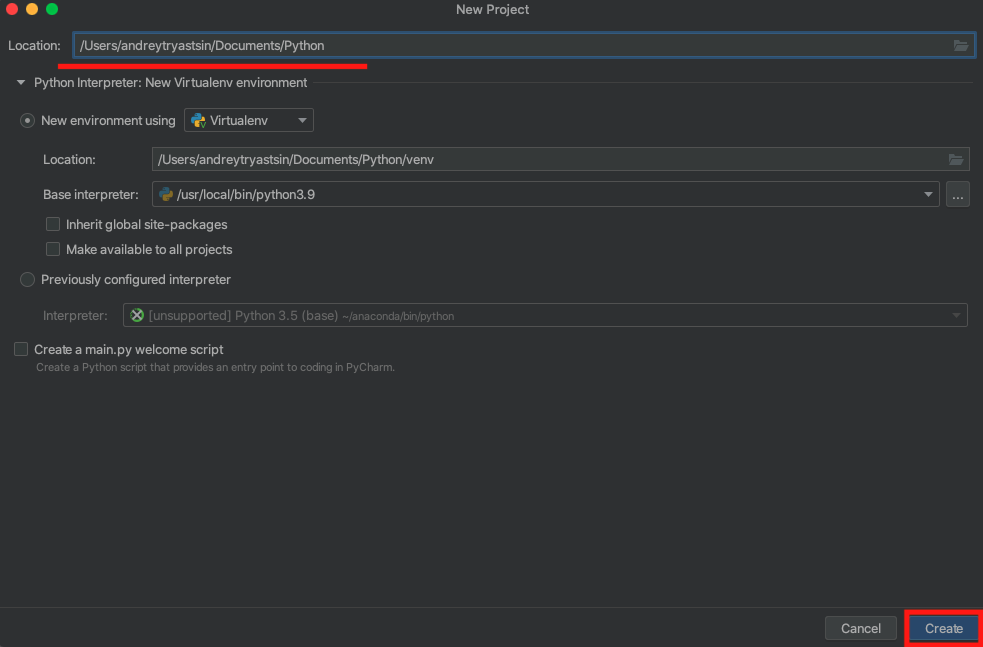
1. Create a project in the desired directory:
2. Copy the files from GitHub into the created directory.
3. In the terminal, enter the following commands:
python3 -m venv venv

source venv/bin/activate

pip install -r requirements.txt

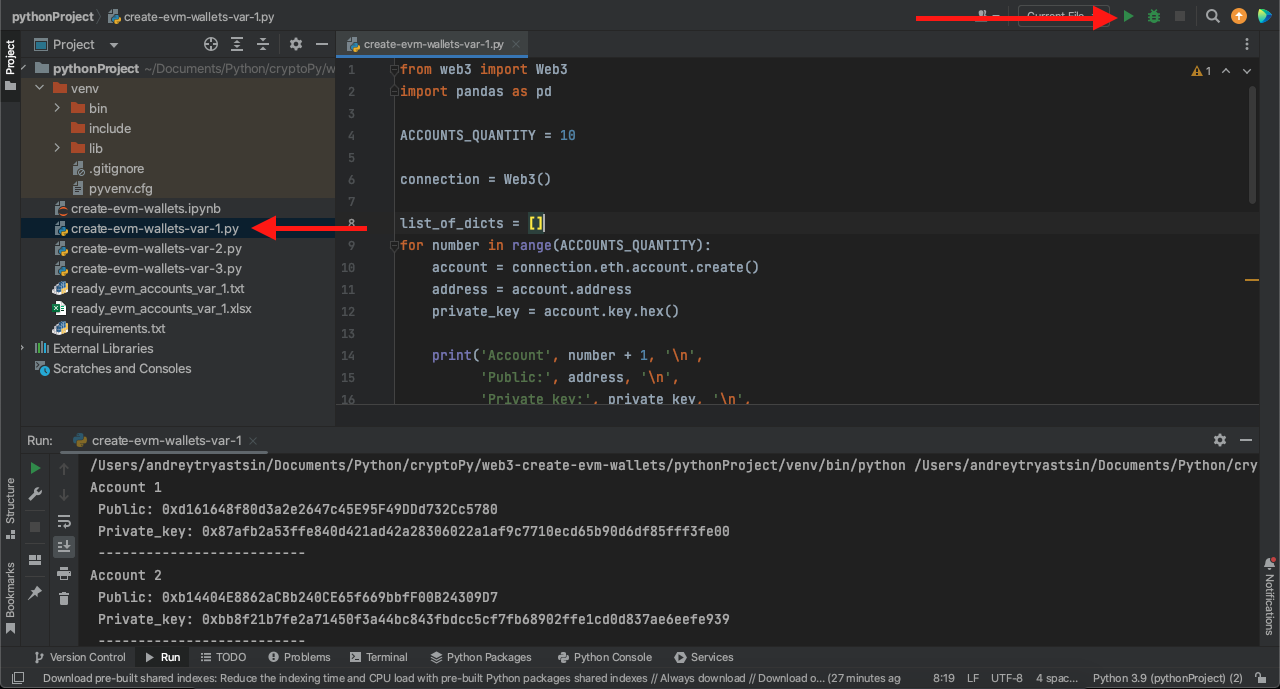
4. Choose the desired .py file and run it:
.ipynb
For all programs, the entire code is duplicated in Jupyter Notebook format. You can use this file to review the program locally or online.
For local use, you can install the Anaconda distribution of libraries here.
For online use without installing all dependencies locally, you can try Google Colaboratory.
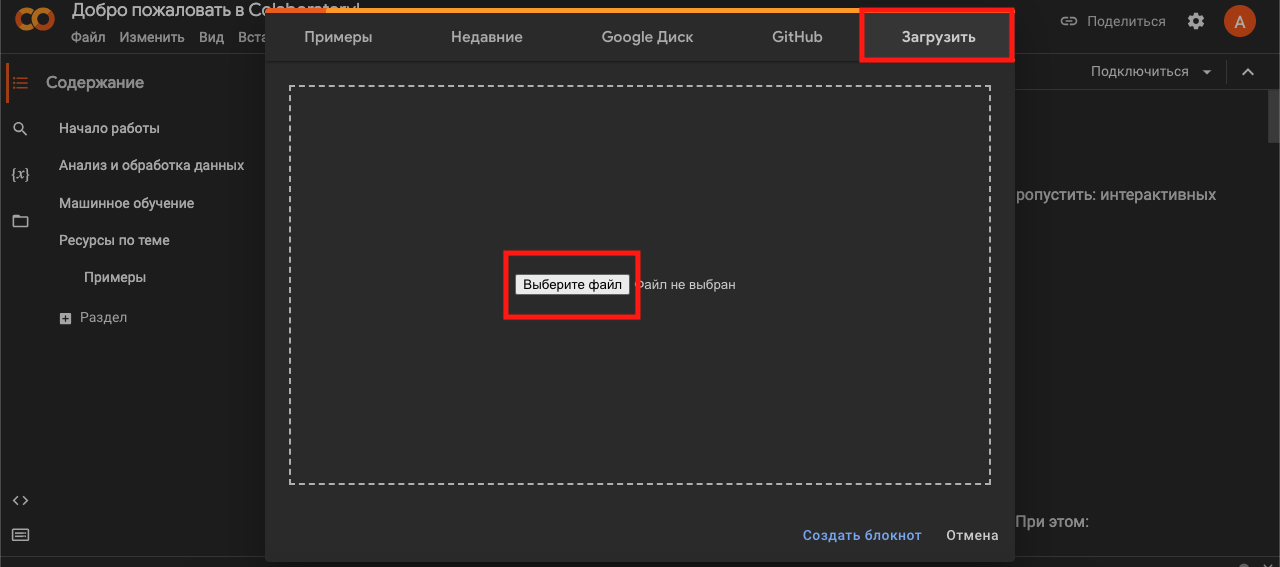
1. Go to the website https://colab.research.google.com
2. Specify the path to the file:
3. To run, use the button in the code cells:

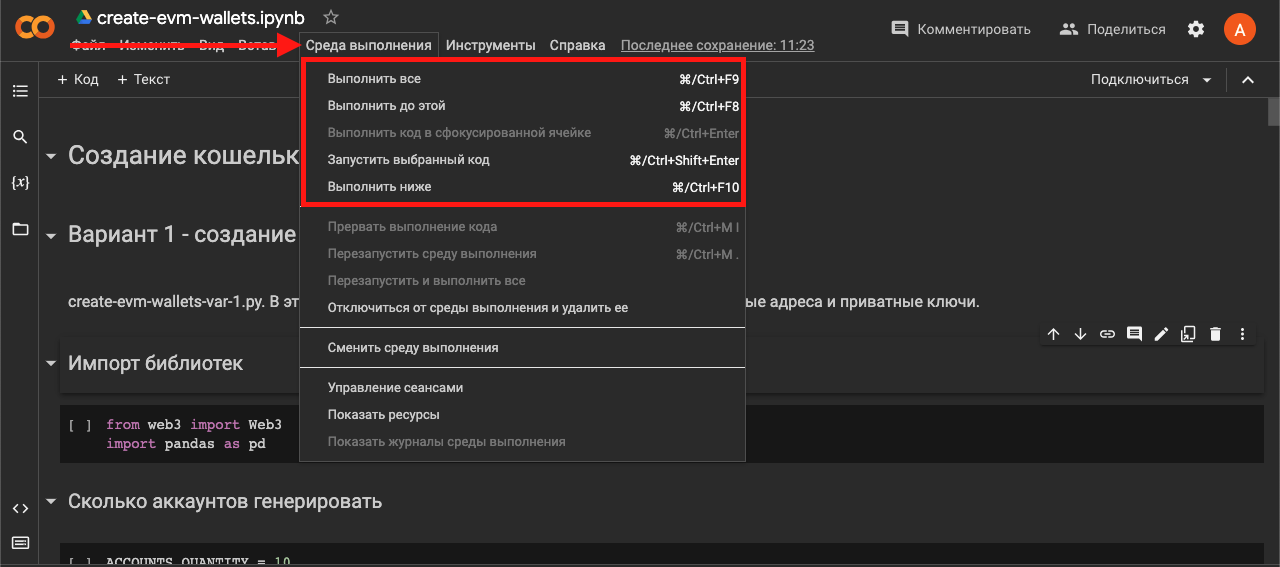
4. Or run the code in its entirety or partially:
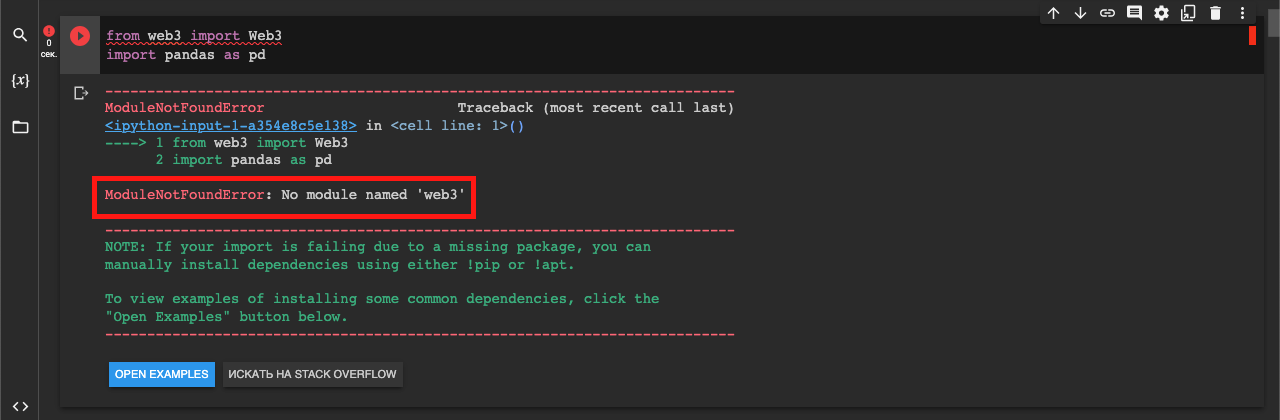
5. If the code produces an error due to missing necessary libraries:
6. Add a new cell and install the required library:

7. When installing, conflicts with other dependencies may occur, for example when installing web3:
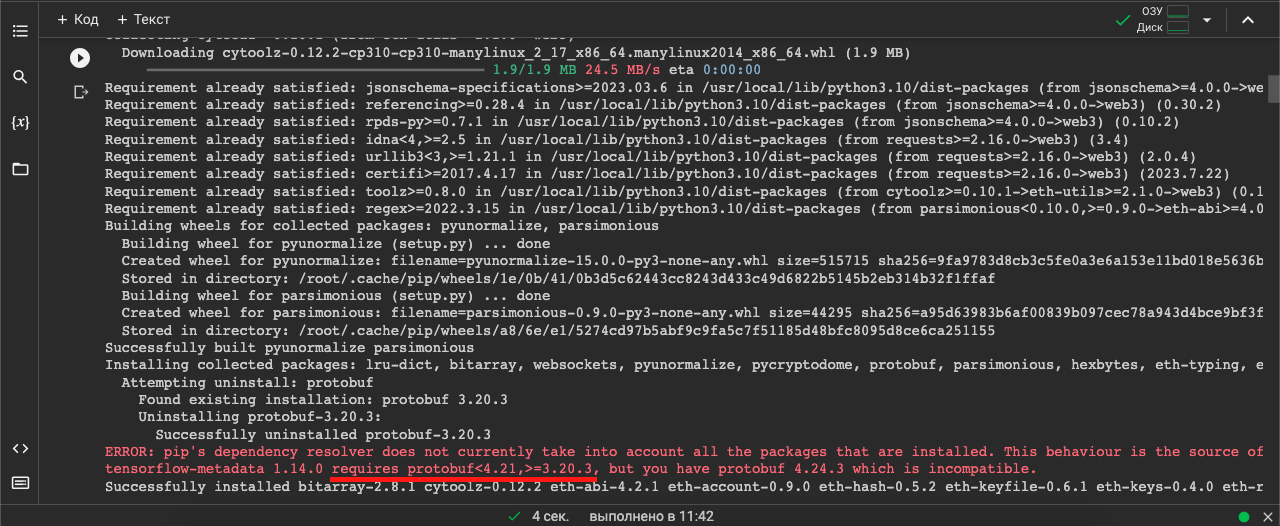

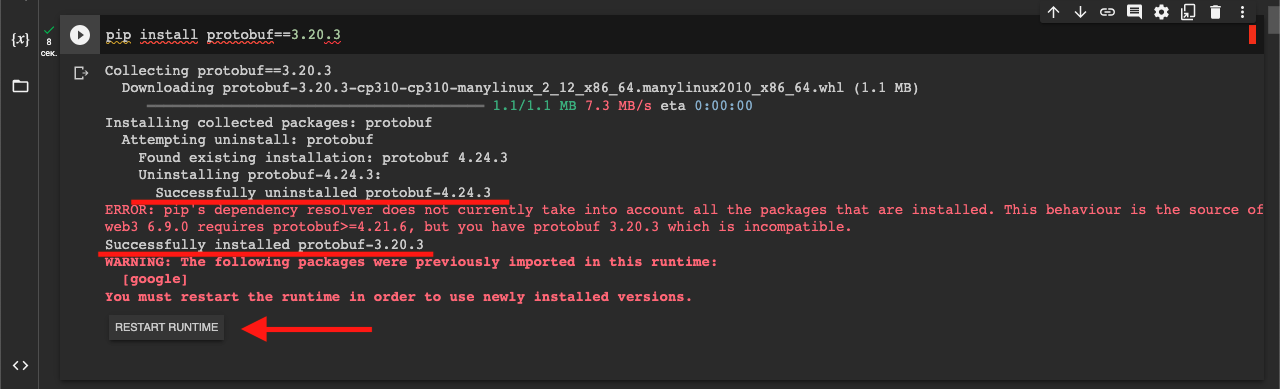
8. In this case, the environment you're using has a newer version of protobuf, but web3 requires a downgrade. After downgrading the version, restart the development environment using the 'Restart Runtime' button:
9. Re-run the script:
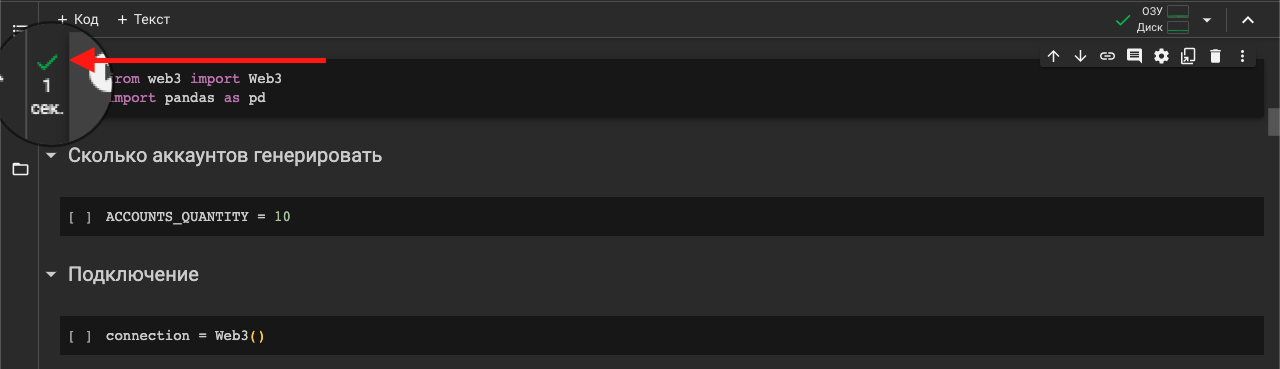
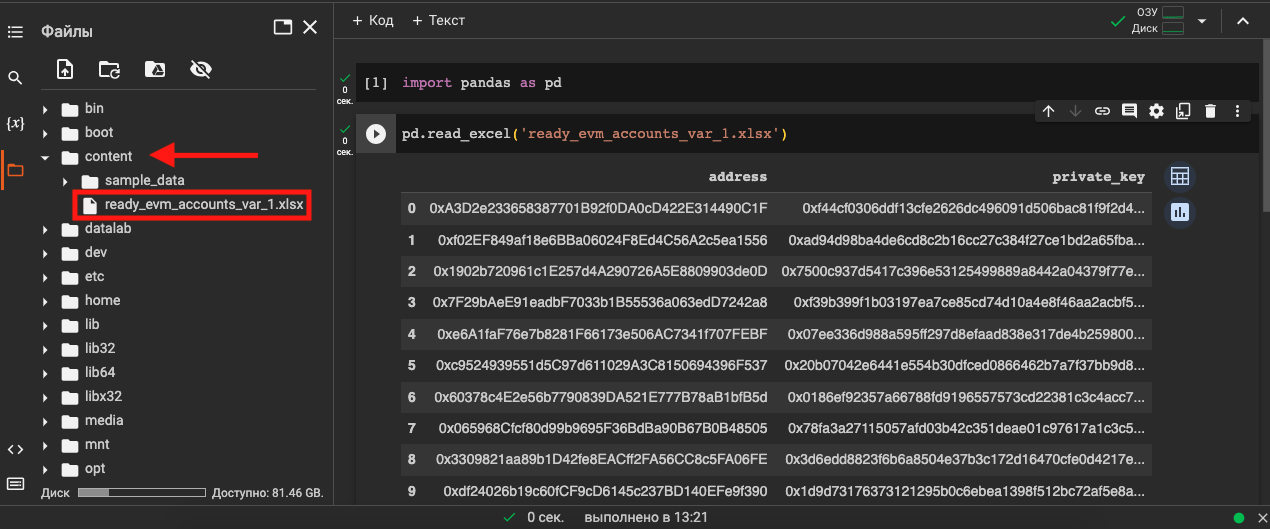
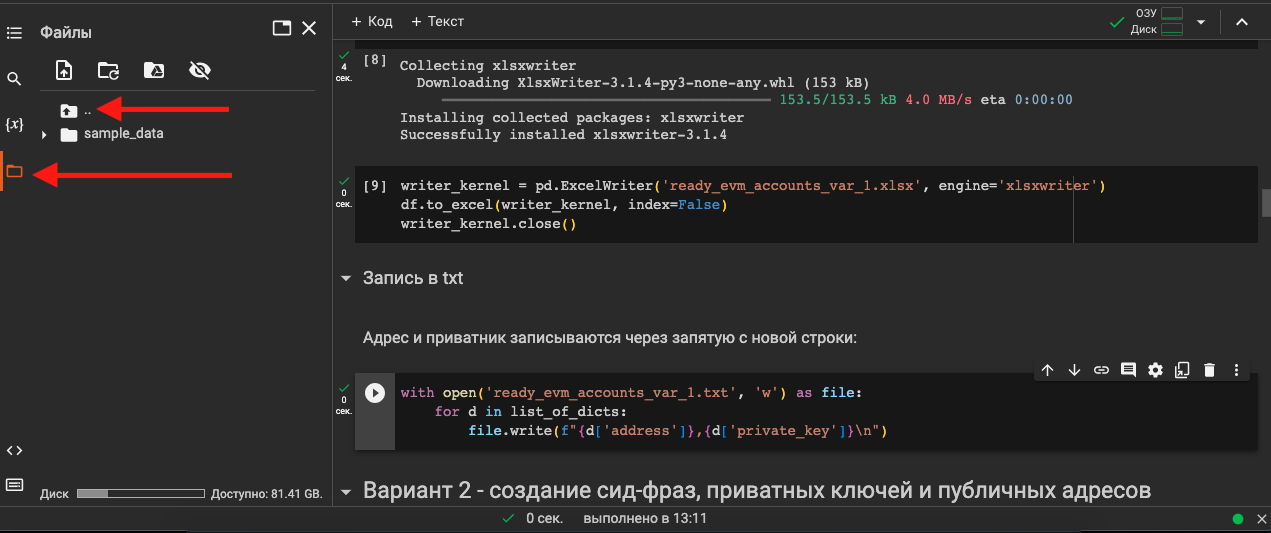
10. Programs may export results in the form of files. To download them, click on the folder icon in the left menu and navigate to the parent directory:
11. Open the 'Content' directory, find the desired file, click on the three dots, and download it:
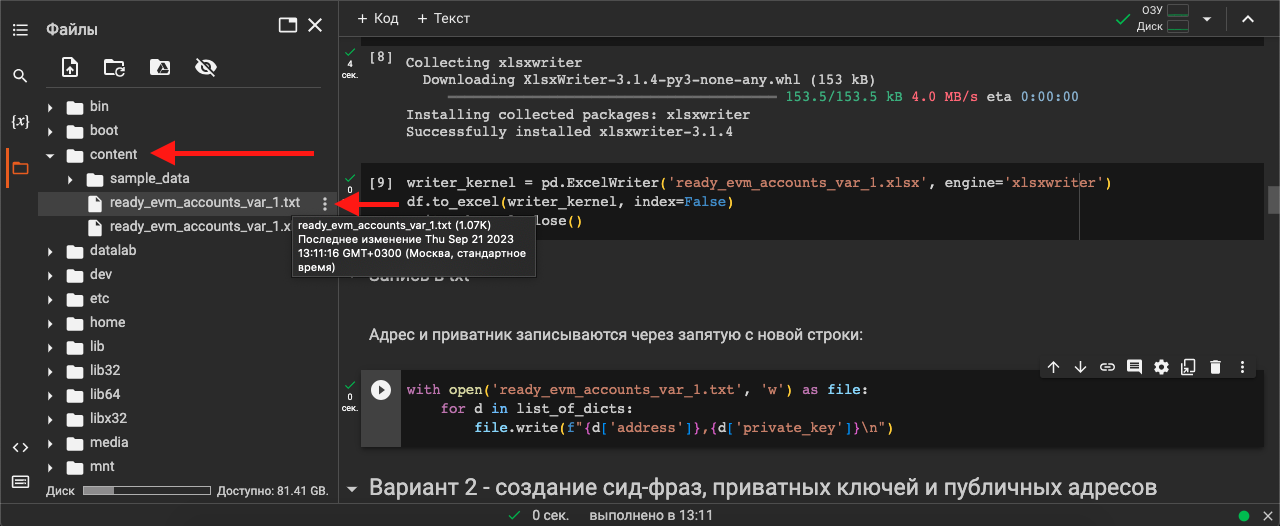
12. To upload a file for your program to work with, simply drag and drop it into the 'Content' folder: